Scene 1 (0s)
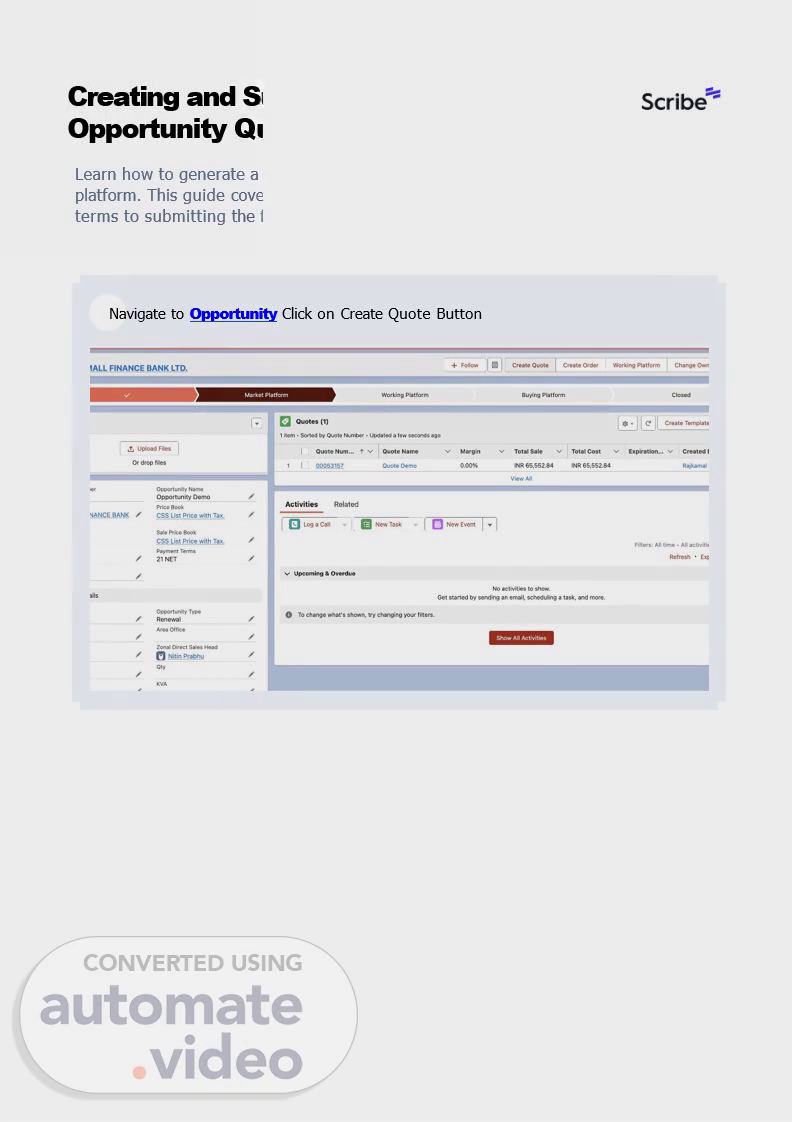
Creating and Submitting a New Opportunity Quote Learn how to generate a professional quote for an opportunity within the Salesforce platform. This guide covers everything from inputting project specifications and terms to submitting the final document for internal approval..
Scene 2 (17s)
2 Click "Create Quote". 3 Click on Quote Name. Made with Scribe - https://scribehow.com.
Scene 3 (25s)
4 Type "Quote Demo". 5 Click "KAM-Account Owner".
Scene 4 (33s)
6 Click "Priyanka Porwal". 7 Click "Billing frequency/Scope for B/C Parts".
Scene 5 (43s)
8 Select the "As And When Supply" option.. 9 Click "Billing Frequency".
Scene 6 (52s)
10 Select the "Quarterly" option.. 11 Click "Visit Frequency".
Scene 7 (1m 0s)
12 Select the "Quarterly" option.. 13 Click "Contract Start Date".
Scene 8 (1m 9s)
14 Add the Contract Start Date. 15 Click "Manual Contract End Date".
Scene 9 (1m 18s)
16 Add "Manual Contract End Date". 17 Click "Save".
Scene 10 (1m 26s)
18 Click on "Created Quote Number". 19 Click "Show".
Scene 11 (1m 34s)
20 Click "Quote Line Template". 21 Click the "Select Template" field..
Scene 12 (1m 43s)
22 Click "1000KVA / 1010 KVA OW" template. 23 Click "Add".
Scene 13 (1m 52s)
24 Click "Terms & SLA". 25 Click "Terms". Made with Scribe - https://scribehow.com.
Scene 14 (2m 0s)
26 Click "New". 27 Click "Terms Description". Made with Scribe - https://scribehow.com.
Scene 15 (2m 8s)
28 Click here.. 29 Type "Test Terms". Made with Scribe - https://scribehow.com.
Scene 16 (2m 16s)
30 Click "*Terms Type". 31 Click "Cover Letter". Made with Scribe - https://scribehow.com.
Scene 17 (2m 24s)
32 Click "Scope Visible to Dealer- Optimus". 33 Click the "Scope Visible to Dealer- Optimus" field..
Scene 18 (2m 34s)
34 Click "Save". 35 Click "Quote Demo". Made with Scribe - https://scribehow.com.
Scene 19 (2m 42s)
36 Click "Present". 37 Click "Save". Made with Scribe - https://scribehow.com.
Scene 20 (2m 50s)
38 Click "Submit for Approval". 39 Click "Submit".